Session auto-pilot (off-season)
In the off-season some players keep wearing their STATSports pod on their own runs and at informal sessions. Nothing on your schedule covers those sessions, so each one would wait in Data review for you to allocate by hand. Auto-pilot sorts them for you between two dates you pick.
Who can use it: admins and coaches, at clubs on the STATSports system where players sync their own pods. It's off until someone at your club turns it on.
The pictures on this page use a made-up squad.
Turning it on
Open Data review. The auto-pilot strip is at the top. Click Turn on, then pick the dates:
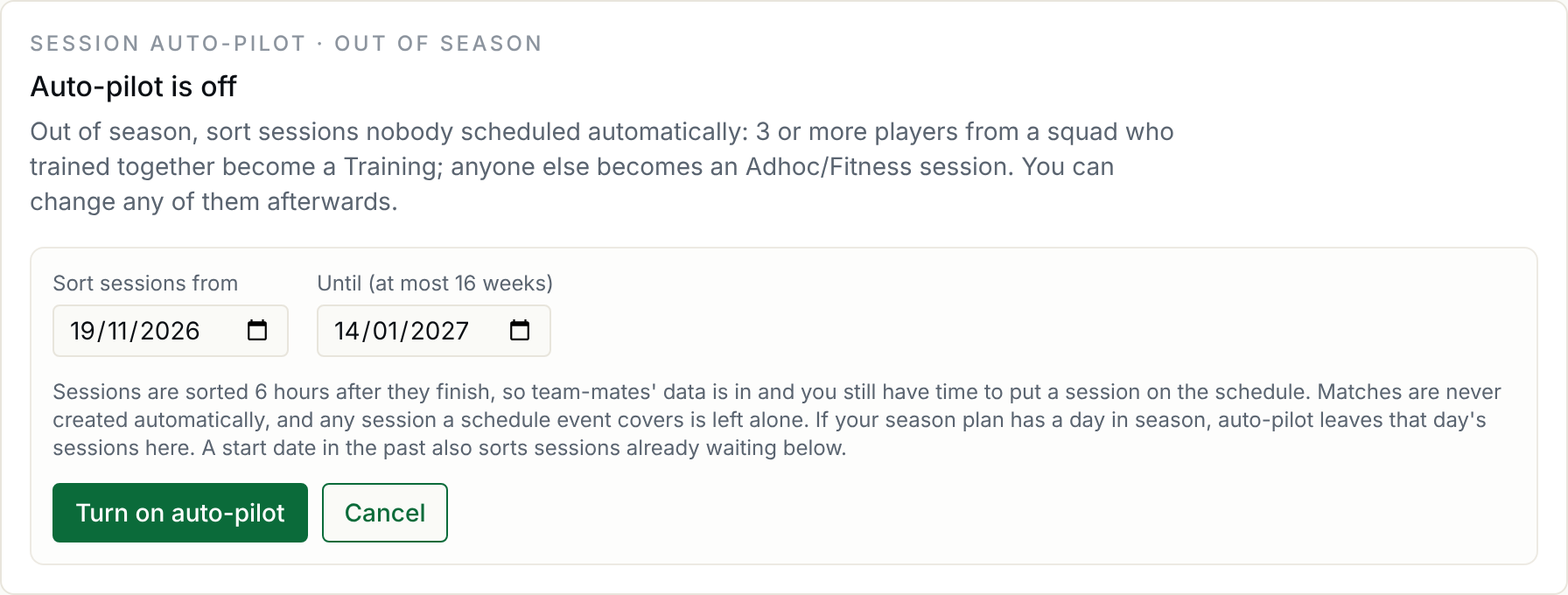
- Sort sessions from — today, or up to 28 days back. A date in the past also sorts the sessions already waiting in Data review.
- Until — at most 16 weeks away. Auto-pilot switches itself off after this date, so it can't be left running into the new season by mistake.
Click Turn on auto-pilot. You can change the dates or turn it off from the same strip at any time.
What it does with each session
Auto-pilot looks at a session 6 hours after it finishes. That gives team-mates' pods time to sync, and gives you time to put the session on the schedule yourself if you want to. Then:
- 3 or more players from the same squad who trained together become one Training, shown as a single session card. "Together" means they started within about half an hour of each other and were out for most of the same time.
- Anyone else becomes an Adhoc/Fitness session of their own.
It leaves these alone:
- Any session your schedule covers. If you put a training on the schedule, the sessions go to it as usual.
- Days your season plan has in season. If you've set up a season plan (Season Planning → Season), auto-pilot only sorts days in an off-season or transition phase. On other days the strip says it's paused and sessions wait in Data review.
- Matches. Auto-pilot never creates a match. If a group session was really a game, change its type afterwards.
A training auto-pilot creates is not put on your schedule. That's deliberate: a scheduled training counts as one the whole squad was expected at, so everyone who wasn't there would look like they missed it.
If a team-mate's pod syncs late, auto-pilot adds them to the group for up to 48 hours afterwards, as long as nobody has changed the session.
Checking what it sorted
Once it's on, the strip shows how many sessions it sorted in the last 14 days. Click Show what auto-pilot sorted for the list:
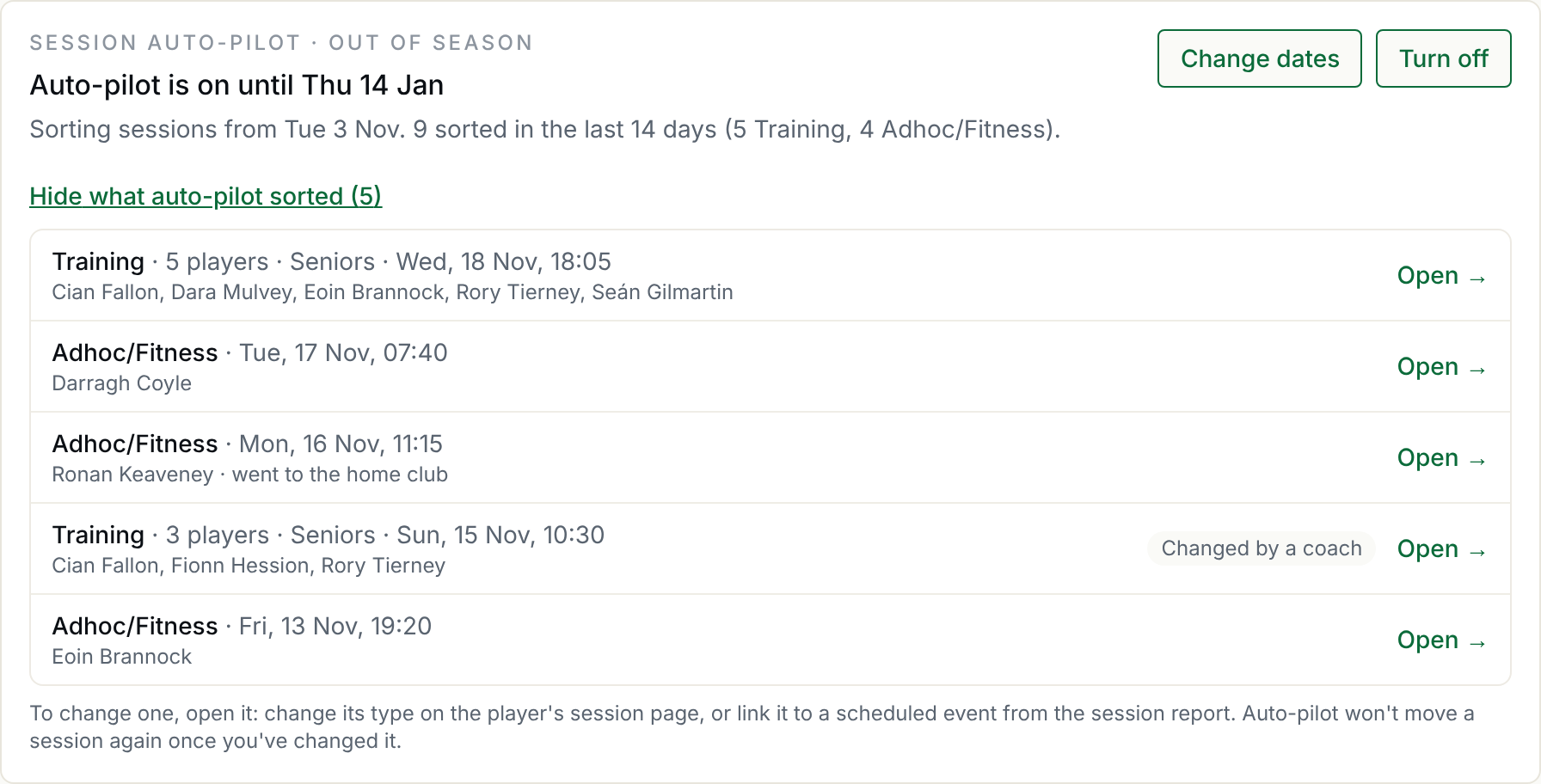
Open → takes you to the session. To change one:
- change its type on the player's session page, or
- link it to a scheduled event from the session report.
Once you've changed a session it's marked Changed by a coach, and auto-pilot won't touch it again.
Players on two clubs
A player on two clubs' panels has one pod, so both clubs could take a session. Auto-pilot decides once for both clubs:
- A group training goes to the club whose squad they trained with.
- A session they ran alone goes to the only club with auto-pilot on, or, if both have it on, to their home club (the list says went to the home club).
The home club is worked out from where they've trained on the schedule over the last 12 months. You can set it yourself on the player's page:

Both clubs see and can change this setting. If it's an even split and nobody has picked one, the player's solo sessions stay in Data review.